ΟδηγοίΓια προγραμματιστές
Git basics
What git is, and what clone, commit, branch, fetch, pull, push and merge actually do. Enough to follow a change from your laptop to main without guessing.
Η σελίδα δεν έχει μεταφραστεί ακόμη, γι' αυτό εμφανίζεται στα αγγλικά.
What git is
Git keeps the full history of a project as a chain of snapshots. Every snapshot is called a commit. A commit records what every file looked like at that moment, who made it, when, and a short message saying why.
The project and its whole history together are a repository (a "repo"). You keep a copy of it on your own machine, and a shared copy lives on a server such as GitHub. Nearly every git command either changes your local copy or moves commits between your copy and the shared one.
Local and remote repositories
The shared copy is called a remote. By convention the one you cloned from is named origin. You get your local copy with git clone:
git clone https://github.com/your-team/your-app.git
cd your-app
Your local copy has three places a change can be in, and most confusion comes from mixing them up:
- Working tree
- The files on disk, as your editor sees them. Editing a file changes only this.
- Staging area
- The changes you have picked for the next commit, with
git add. - History
- The commits themselves.
git committurns what is staged into a new commit.
git status            # what changed, and what is staged
git diff              # the unstaged changes, line by line
git log --oneline     # the history, newest first
Making a commit
A commit should hold one idea: a fix, a feature, a rename. Small commits are easier to review and easier to undo.
git add src/invoice.js    # stage one file
git add -p                # or pick changes piece by piece
git commit -m "Round invoice totals to the cent"
Write the message for the person reading the history in six months: a short first line saying what the change does, then, if it is not obvious, a paragraph saying why.
Branches
A branch is a name that points at a commit. When you commit on a branch, the name moves forward to the new commit. That is all a branch is: a movable label, which is why creating one is instant and free.
The project’s main line is the branch called main. Work happens on separate branches so that half-finished changes never land on main by accident.
git switch main
git switch -c fix/invoice-rounding    # create a branch and move onto it
# edit, add, commit as often as you like
git branch # list local branchesmainStart- Add the login page
fix/roundingRound invoice totals- Add a test for rounding
- New logo
- Merge
fix/rounding
fix/rounding leaves main, collects its own commits while main moves on, and comes back in a merge commit (the hollow dot).Fetch, pull and push
These three commands move commits between your copy and the remote. They are the only commands that talk to the network.
Your copy keeps a bookmark of where GitHub’s main was the last time you looked, called origin/main. Here is what happens when teammates push while you work:
mainStartorigin/mainAnna: new logo- You: export as PDF
- Nikos: fix a typo
- Merge
origin/maingit pull
main lives on your computer; origin/main is GitHub’s copy as of your last fetch. git fetch downloads Anna’s and Nikos’s commits without touching your work, git pull merges them into your main, and git push sends the result back.git fetch- Downloads new commits from the remote and updates your view of it (
origin/main), but leaves your own branches and files alone. Always safe. git pull- A fetch followed by a merge of the remote branch into your current branch. It changes your files, so commit or stash your work first.
git push- Uploads your branch’s new commits to the remote. It is refused if the remote has commits you do not have yet; pull first, then push again.
# see what changed on the remote, touch nothing
git fetch origin

# bring main’s new commits into your current branch
git pull origin main

# first push of a new branch; -u remembers where it goes
git push -u origin fix/invoice-rounding

# every push after that
git pushMerging
A merge brings the commits of one branch into another. Git does it in one of two ways, and it picks for you:
- Fast-forward
- If the target branch has not moved since you branched off, git simply slides its label forward to your latest commit. No new commit is made.
- Merge commit
- If both branches have new commits, git combines them and records a merge commit with two parents, one from each side.
mainStartmain was here- Round invoice totals
- Add a test for roundingmain is now here
main while you worked, so its label simply slides forward to your branch’s last commit.git switch main
git merge fix/invoice-roundingOn a team you rarely run git merge into main yourself. You open a pull request and merge it on GitHub after review, which is the next page.
Merge conflicts
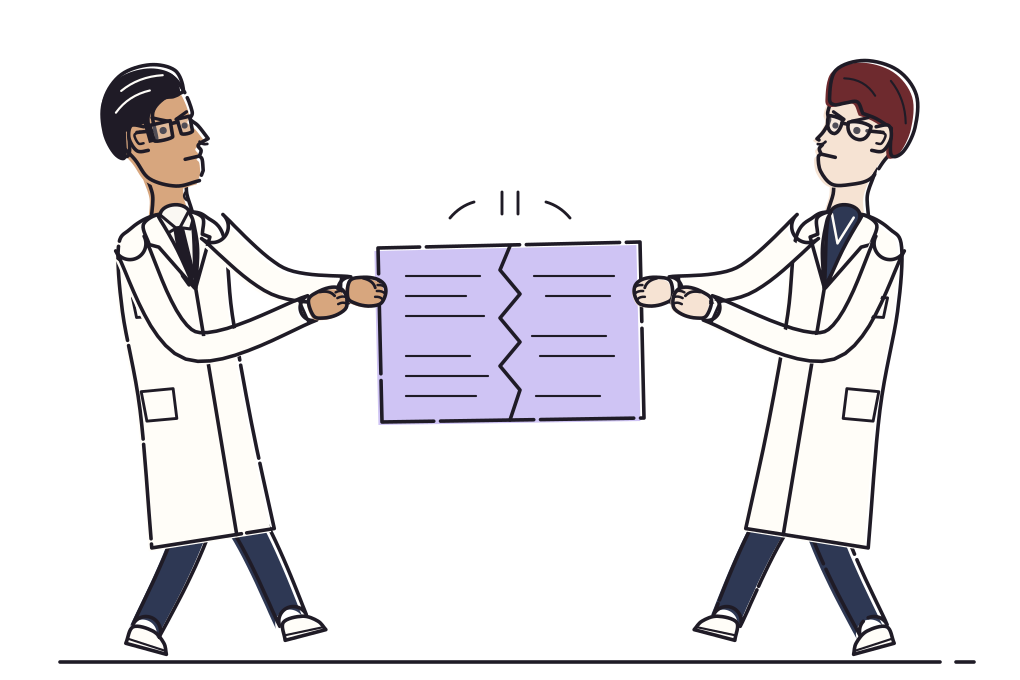
A conflict happens when both branches changed the same lines, and git cannot know which version you want, so it stops and asks you.
Inside the file, git marks the spot like this:
<<<<<<< HEAD
const VAT = 0.24;
=======
const VAT = 0;
>>>>>>> fix/invoice-rounding- Open each file
git statuslists as conflicted. - Edit the marked block into what the code should say, and delete the three marker lines.
- Stage the file with
git add, then rungit commit(orgit merge --continue) to finish. - Run the tests before pushing: a conflict resolved by hand is new code nobody has reviewed yet.
Undoing things
git restore <file>- Throws away unstaged edits to a file. They cannot be recovered.
git restore --staged <file>- Unstages a file but keeps your edits.
git stash- Puts your uncommitted changes aside so you can switch branches;
git stash popbrings them back. git revert <commit>- Makes a new commit that undoes an old one. The safe way to undo something already pushed.
An everyday loop
Most days look like this, start to finish:
git switch main && git pull           # start from the latest main
git switch -c feat/patient-export     # one branch per change
# ...edit...
npm test                              # check before you commit
git add -p && git commit -m "Export a patient’s record as PDF"
git push -u origin feat/patient-export
# then open a pull request on GitHub